How to find your IP Adress on Any Device (iPhone, Android…)
Oct 5, 2025
How to Find Your IP Address on Any Device
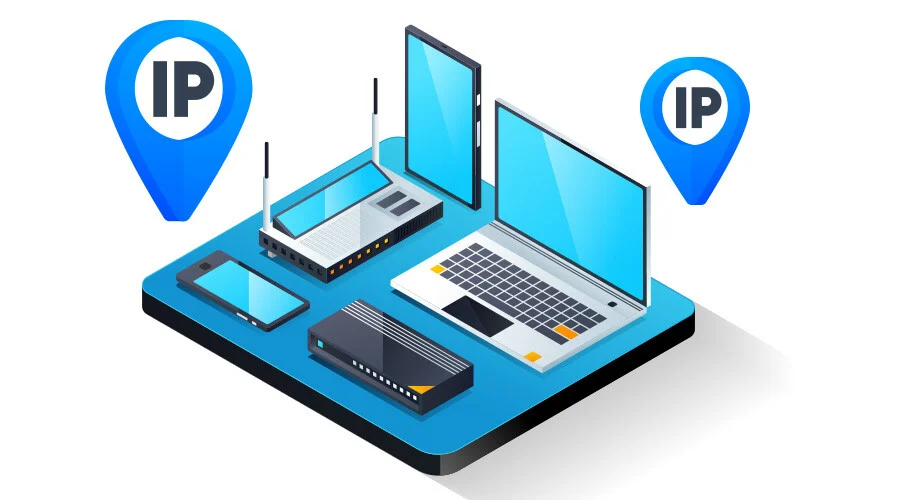
Every device connected to the internet has a unique IP address that allows it to communicate with other devices, access online tools, and work efficiently within a network. Knowing your IPv4 or IPv6 address is essential for managing routers, using VPNs, testing internet speed, working with hosting services, and monitoring your ISP.
In this guide, we will show you how to find your IP address on any device, including Windows, Mac, iPhone, Android, and Linux, and how to make the most of network tools, APIs, online lookup services, and databases to check your connection data, addresses, and devices.
If you want a quick way to see your public IP address, you can use WhatsMyIP — a simple, fast tool to check your IPv4 or IPv6, find your ISP, and verify your network data instantly.
Why Your IP Address Is Important
Your IP address is the digital identity of your device on the internet, and it matters for several reasons:
Network management: Every device in your home or office network has a unique private IP address. Your router uses these to ensure all devices communicate efficiently without conflicts.
Internet access: Your public IP address assigned by your ISP allows your device to access websites, online services, and hosting platforms.
Security and privacy: Knowing your IP allows you to use VPNs or proxy servers to hide your addresses and protect your data from trackers and hackers.
Troubleshooting and testing: Using network tools, speed tests, and APIs, you can verify your connection data, monitor your ISP, and make sure all your devices are working correctly.
Understanding how to monitor and use your IP address helps you work securely and efficiently online, and it is crucial for anyone using multiple devices or running hosting services.
How to Find Your IP Address on Windows
Windows users can check their IPv4 or IPv6 addresses in multiple ways:
Open network settings or use the Command Prompt.
Look for the active connection to find your IP address.
Use online tools such as WhatsMyIP to confirm your public IP and check your ISP.
Access your router to manage multiple devices, assign static addresses, and verify network configuration.
Checking your IP regularly ensures your devices run smoothly, your router is properly configured, and your network speed meets your expectations.
How to Find Your IP Address on Mac
On Mac computers:
Go to Network settings and select your active Wi-Fi or Ethernet connection.
Check for IP addresses, router information, and network status.
Use network tools like WhatsMyIP or other lookup services to verify your device and network data.
This approach helps you manage multiple devices, monitor your connection speed, and efficiently use hosting services.
How to Find Your IP Address on iPhone
iPhone users can quickly view their IP addresses:
Open Settings → Wi-Fi.
Tap the info icon next to the connected network.
View your IPv4, IPv6, router addresses, and other network data.
Use WhatsMyIP to see your public IP, ISP, and device addresses online.
Knowing your IP address on iPhone is important for VPN usage, proxy configuration, and testing internet speed.
How to Find Your IP Address on Android
Android devices allow you to check both private and public IP addresses easily:
Go to Settings → About Phone → Status or Network.
Find your IP address and router information.
Optionally, use online lookup tools like WhatsMyIP or network APIs to validate your device data.
This is essential for managing network devices, using proxy servers, and connecting to online hosting platforms.
Using Online Tools and APIs to Check Your IP
Many online tools make it simple to check your IP address, retrieve network data, and perform lookup tests:
IP lookup websites: Show your ISP, location, and public IP. Use WhatsMyIP to see your device information instantly.
Speed test tools: Check your internet speed, router performance, and overall network efficiency.
APIs: Developers can use IP APIs to access device and network data, track addresses, and monitor online connections.
These tools help you find your ISP, check device configuration, and ensure all devices in your network are working properly.
Advanced Tips for Managing Your IP
Regularly check all IP addresses for your devices using WhatsMyIP or other lookup tools.
Use VPNs or proxy servers to protect your public IP addresses and sensitive data.
Leverage network tools, speed tests, APIs, and online lookup services to monitor ISP performance, test connection speed, and verify device data.
Configure your router to manage multiple devices and addresses efficiently.
Test Linux devices, hosting servers, and other network equipment using online tools to ensure everything works properly.
Following these tips ensures your network is secure, fast, and reliable, and your data remains private.
Conclusion
Knowing how to find your IP address on any device is essential for managing your network, securing your data, and optimizing your internet connection. Using network tools, lookup services, APIs, VPNs, and proxies, you can quickly access and manage your IP addresses for all devices.
Always monitor your addresses, use online tools like WhatsMyIP to verify ISP, connection speed, and device data, and ensure your network works efficiently and safely.
By combining network management, online services, VPNs, proxies, and data monitoring, your devices will operate at maximum speed, security, and reliability — whether you’re testing your internet, managing routers, or working with hosting platforms.